How to Download and Register Muse APK on Android #
Meta Muse is a personal AI agent officially released by Meta on September 8, 2026. Positioned as “the world’s first personal AI assistant built for everyone,” it is not a traditional chatbot that only answers questions. Instead, it is an Agent that can actively complete tasks for you.
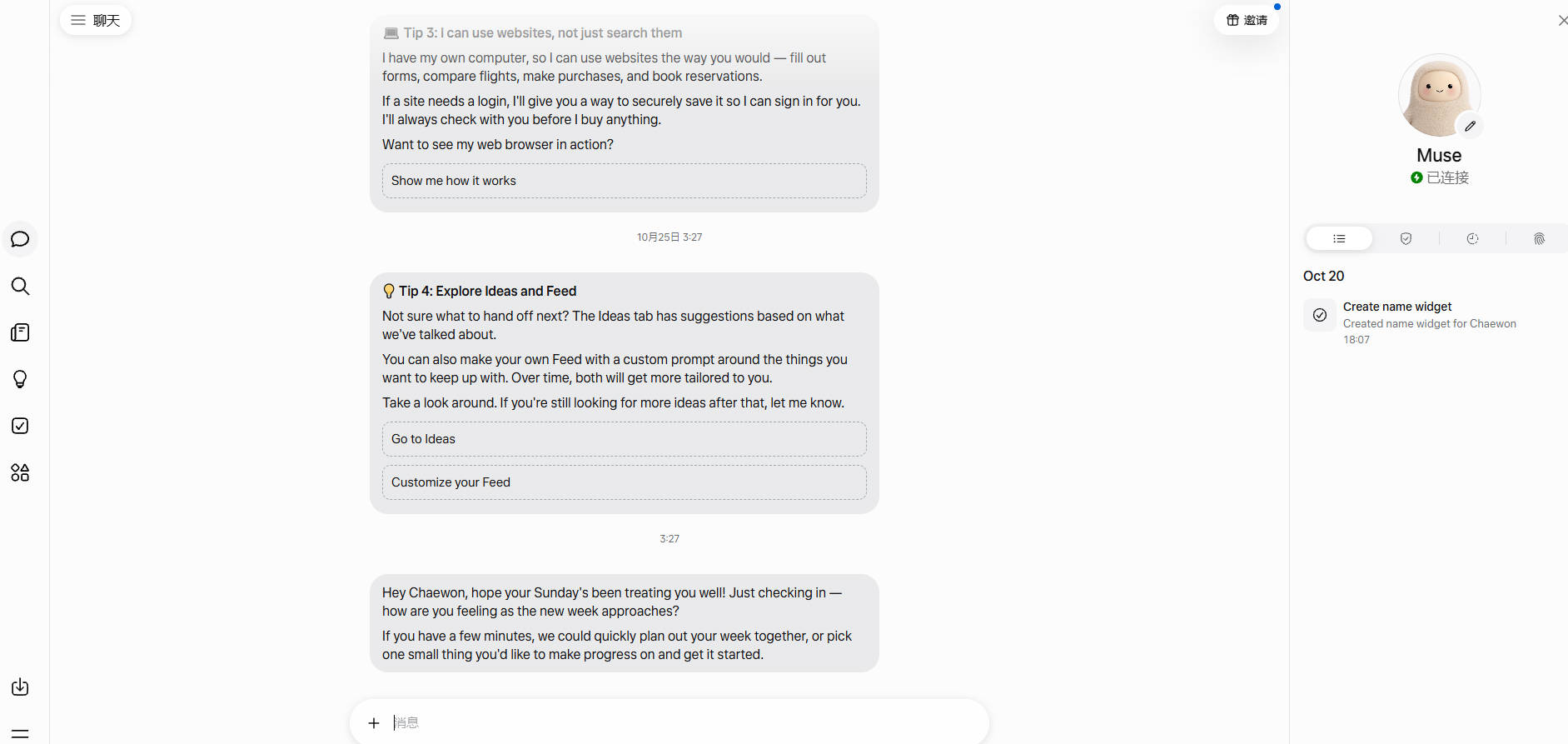
Key Features #
- Actually gets work done: Opens web pages, compares prices, fills forms, places orders, handles emails, manages calendars, books trips, negotiates bills, and more. After you set a goal, it continues working in the background even if you close the app.
- Dedicated cloud computer: Every user gets an isolated Muse Secure VM with its own browser and file space, operating websites and apps like a real person.
- Has a “face” and personalization: You can customize the name and avatar (default is the cute beige cartoon character Jolly). It supports proactive suggestions, goal tracking, and direct conversation via WhatsApp.
- Safety mechanisms: Sensitive actions (payments, sending messages, etc.) pause and ask for your approval first. It uses one-time virtual card numbers and other measures to protect privacy.
- Access points: Standalone iOS/Android apps, the web version at muse.ai, and WhatsApp. Currently mainly available in the United States and Canada (users aged 18+). Other regions are not fully open yet.
Download Links #
Using a Proxy Service #
After downloading, do not open and use Muse immediately.
As of October 2026, Muse is officially available only in the United States and Canada (for users 18 years and older). If you are in a region with network restrictions, you first need a VPN that can connect to US proxy servers.
We recommend using an airport service:
Register with an email address.
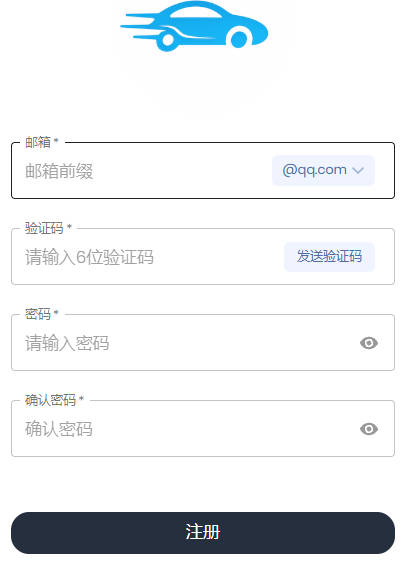
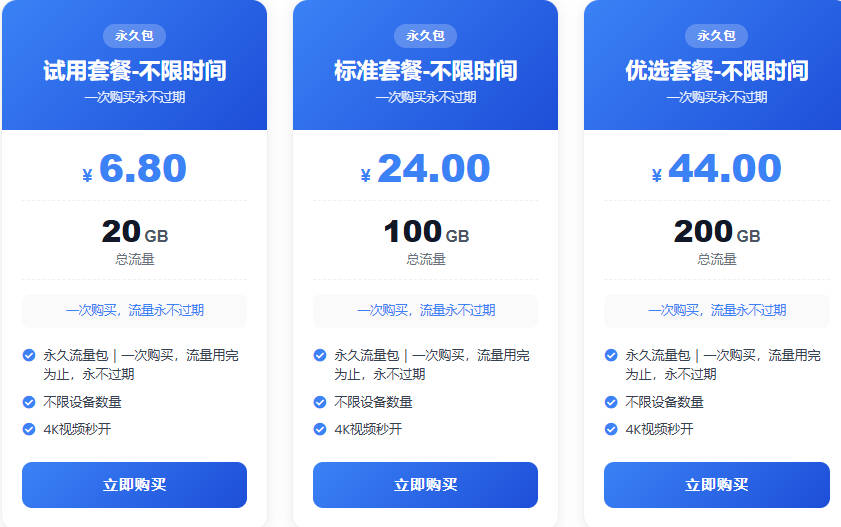
After successful registration, click “Store” in the top-left corner, choose a suitable plan, and complete payment.
After payment, go to “Usage Tutorial” → “Universal Subscription” → copy the link.
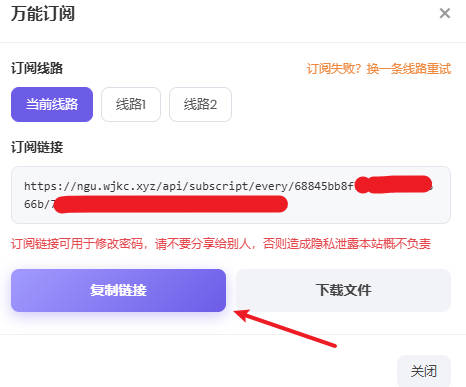
After copying the link, download a proxy client (recommended: v2rayNG):
After installation:
- Tap the three lines in the top-left → “Subscription Group Settings” → “+” in the top-right
- Enter the remark name “Wangji Kuaiche”, paste the copied link into the optional address field, and tap the checkmark to save
- Return to the home screen, tap the three dots in the top-right → “Update Subscription”
- Select a US server and tap the button in the bottom-right to connect
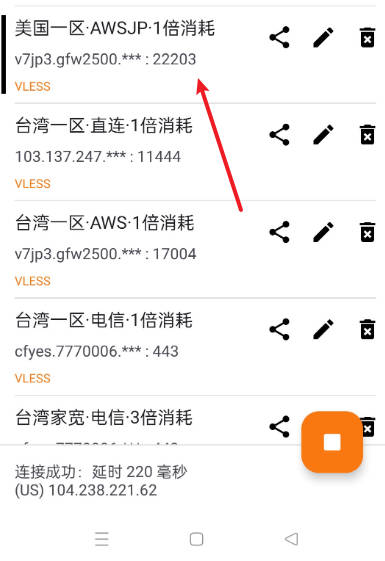
Registering a Muse Account #
It is recommended to register on a Windows PC using the Firefox browser (tested successfully).
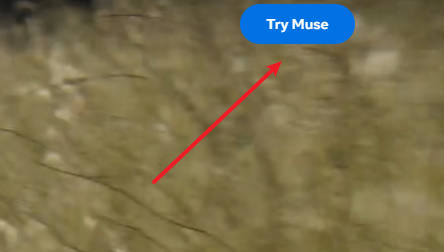
Click Try Muse in the top-right corner.
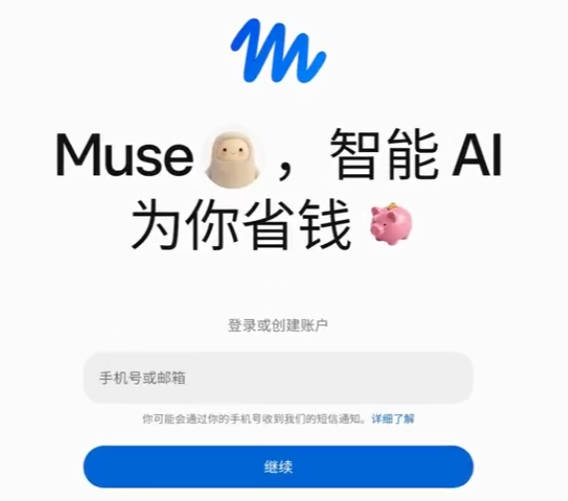
On the next page, enter your email and click Continue.
If you see a page asking for a verification code, it means the email and network environment are fine.
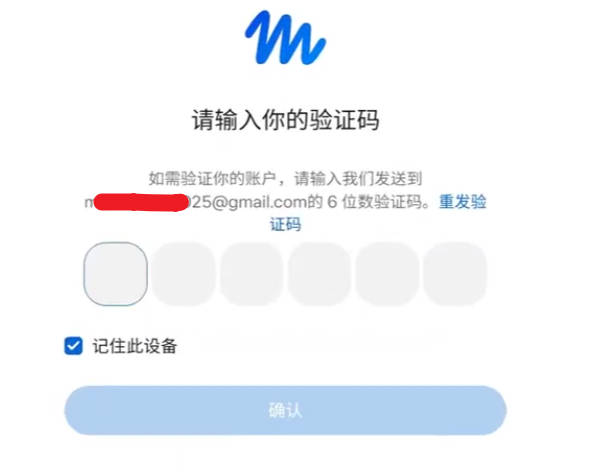
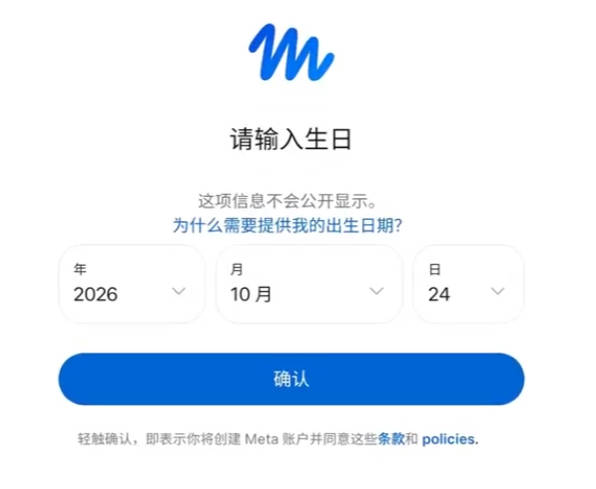
Enter the verification code, click Continue, and input your date of birth (you must be over 18 years old).
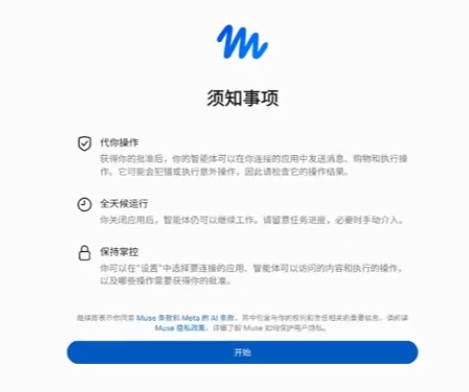
Read the notices and click “Get Started”.
You will then reach the age verification page.
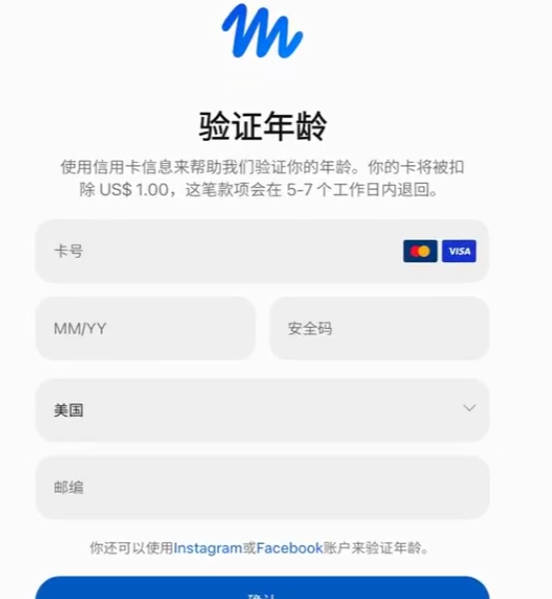
This is the most critical and difficult step. If you cannot complete it, contact: [email protected]
Two Methods for Age Verification #
- Method 1: Register an Instagram or Facebook account and log in directly.
- Method 2: Register a US virtual credit card. In practice, Gate Card has a higher success rate.
- The card must have a balance greater than $1, otherwise verification will fail.
- A $1 charge is made during verification and is refunded within 7 business days.
- Register Gate Card (requires identity verification; top up $2 to obtain the card)
- Register Wasabi Card (no identity verification required; top up with USDT)
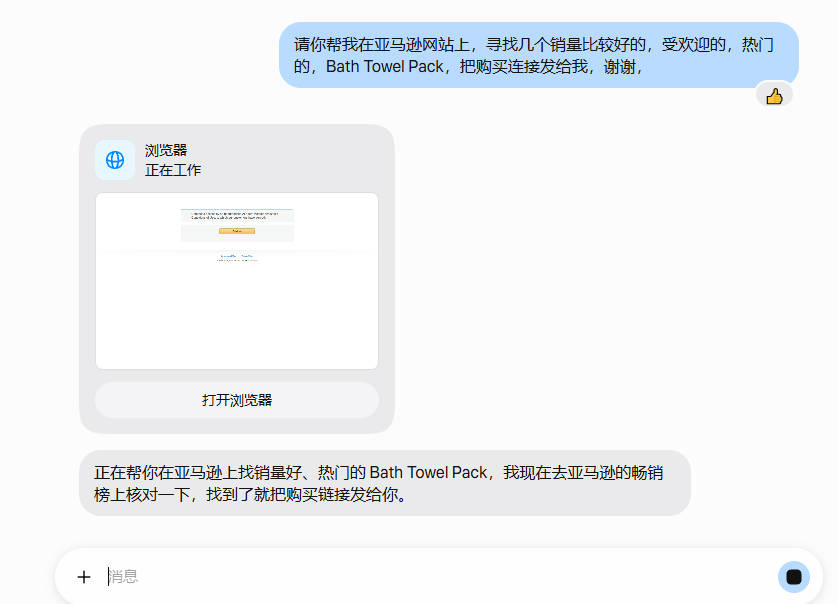
After completing the above steps, you can successfully register and start using Meta Muse.